> ## Documentation Index
> Fetch the complete documentation index at: https://docs.replo.app/llms.txt
> Use this file to discover all available pages before exploring further.
# Publish
> Publish your sales funnel and start selling
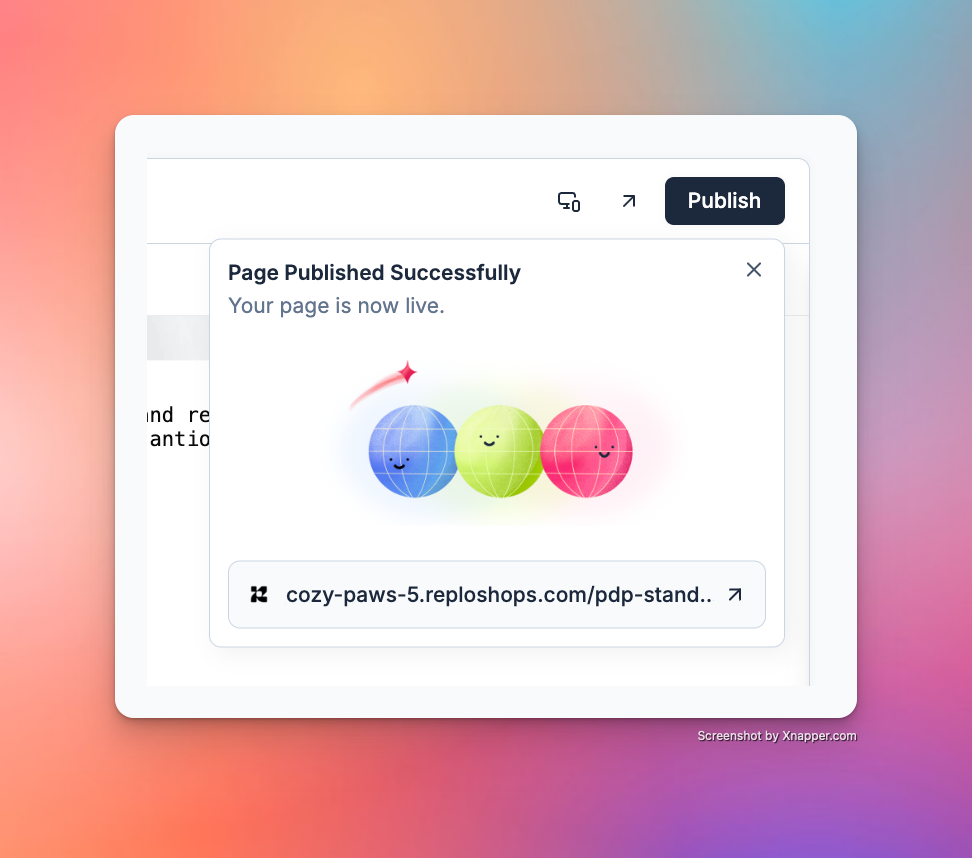
Publishing your pages makes them live on your site. Your published page will be accessible to anyone with the link - make sure your shop is ready for public access before publishing!
In Replo, pages are published to a subdomain of `reploshops.com`. You can connect also connect your own [custom domain](https://docs.replo.app/features/custom-domains) for Replo to publish to.
 ***
## How to Publish
Locate the **Publish** option in the top navigation bar.
Select **Publish**. Publishing typically completes within a minute. You can leave the window and come back later.
Once publishing is complete, a notification will display your live link. Share this link to provide access.
Continue to iterate. When ready to publish updates, select **Publish** again to publish a new version.
Follow the instructions at [custom domains](https://docs.replo.app/features/custom-domains) to connect a live domain to your site.
***
## FAQ and Troubleshooting
If you encounter an error, it may be due to something being misconfigured about the page. Try again, or for persistent issues, consult the Replo's documentation or reach out to [support@replo.app](mailto:support@replo.app).
To apply new changes to your live site, you must select **Pubklish** again from the publish editor. Changes do not sync automatically to your live site unless you publish again.
Yes. On any page, you can use the Page Settings menu to update the published URL path of your page, as well as SEO settings, social preview settings, etc.
***
## How to Publish
Locate the **Publish** option in the top navigation bar.
Select **Publish**. Publishing typically completes within a minute. You can leave the window and come back later.
Once publishing is complete, a notification will display your live link. Share this link to provide access.
Continue to iterate. When ready to publish updates, select **Publish** again to publish a new version.
Follow the instructions at [custom domains](https://docs.replo.app/features/custom-domains) to connect a live domain to your site.
***
## FAQ and Troubleshooting
If you encounter an error, it may be due to something being misconfigured about the page. Try again, or for persistent issues, consult the Replo's documentation or reach out to [support@replo.app](mailto:support@replo.app).
To apply new changes to your live site, you must select **Pubklish** again from the publish editor. Changes do not sync automatically to your live site unless you publish again.
Yes. On any page, you can use the Page Settings menu to update the published URL path of your page, as well as SEO settings, social preview settings, etc.
 Be careful when updating the URL path for a published - if you switch the URL path, the page will no longer be accessible at the old URL path.