> ## Documentation Index
> Fetch the complete documentation index at: https://docs.replo.app/llms.txt
> Use this file to discover all available pages before exploring further.
# Version History
> See every edit and go back in time
// import { Screenshot } from "/snippets/Screenshot.jsx";
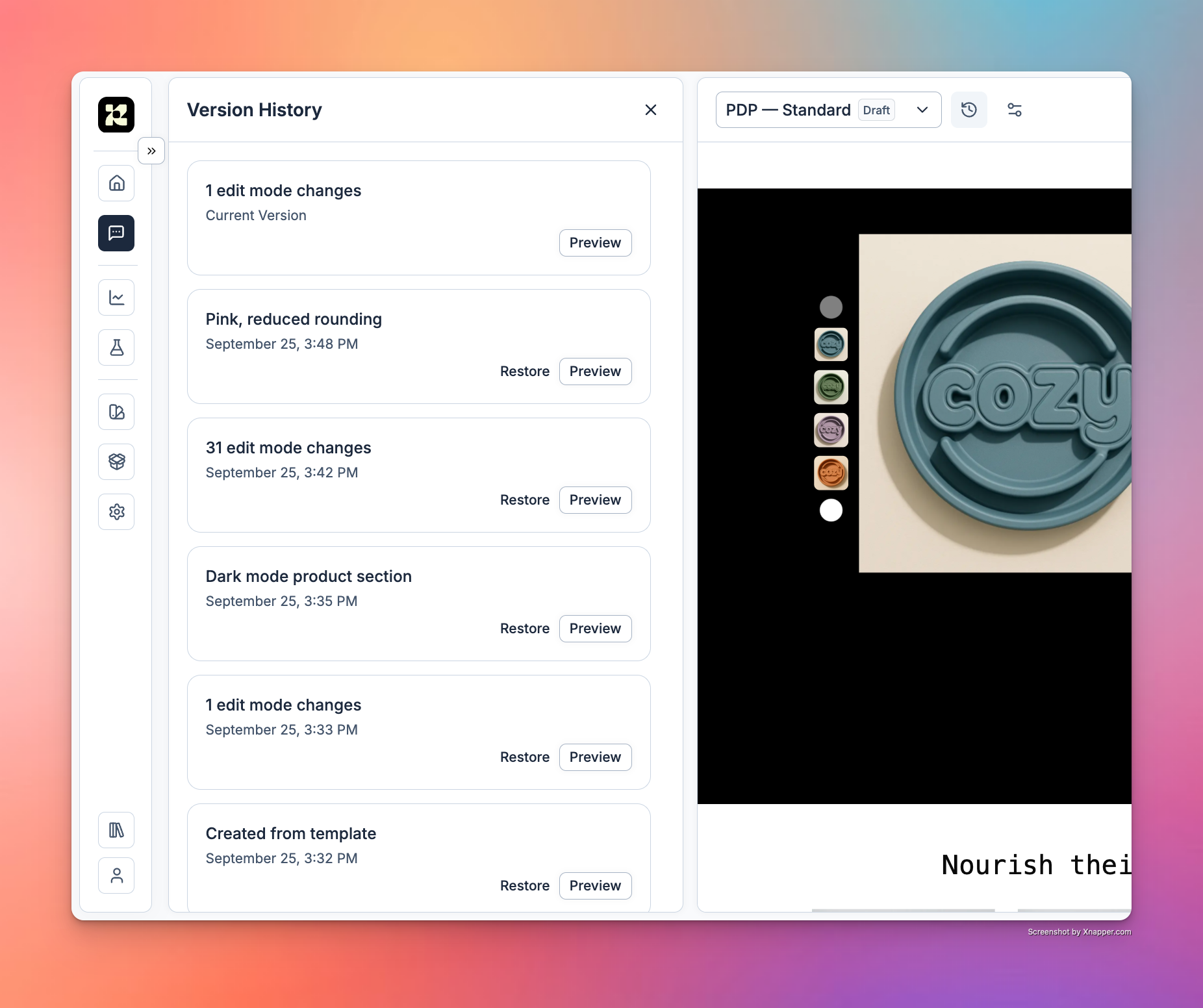
Every page in Replo has a version history. Any time you make an edit, whether using Chat Mode or [Edit Mode](https://docs.replo.app/features/edit-mode), Replo records a version that you can preview and go back to.
## Accessing Version History
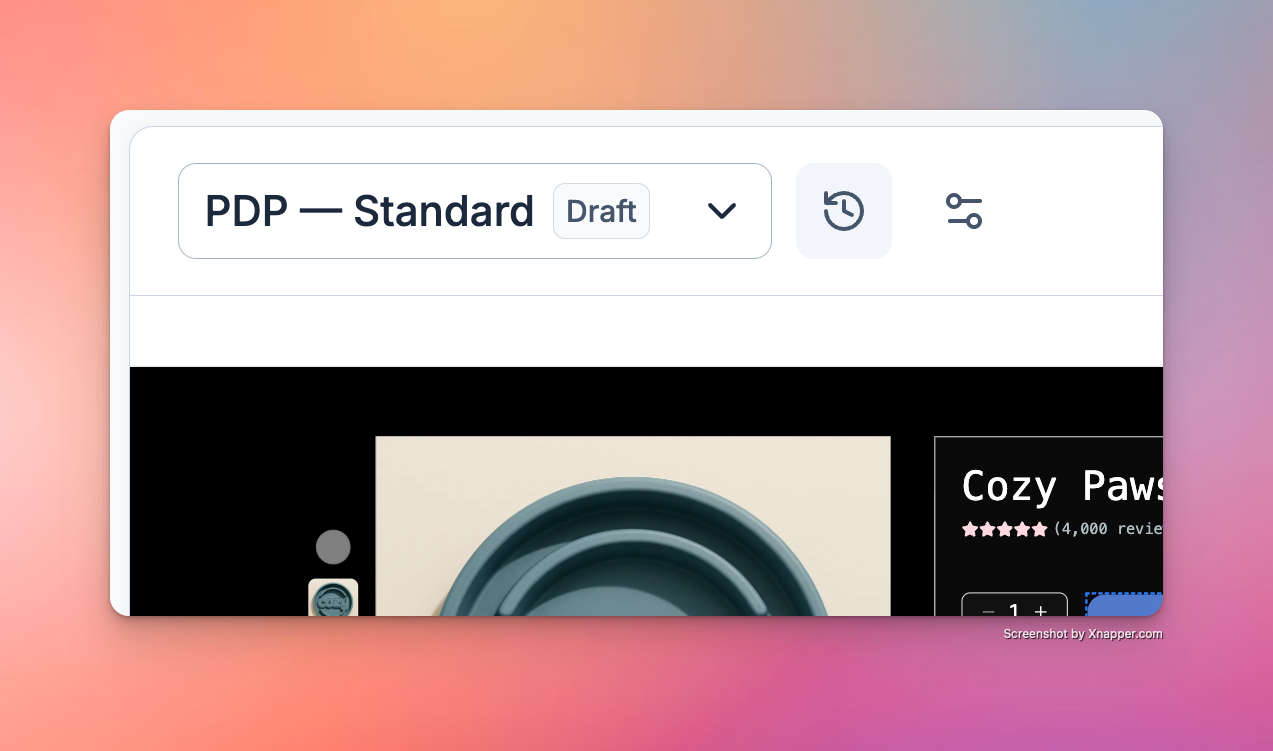
You can enter version history by clicking **Version History** in the toolbar.
 Once active, you'll see all your versions listed:
 ***
## Selecting Versions
Each version can be selected. You can either preview that version, or you can restore to that version. **Previewing a version** shows you a preview in the editor of what that version looked like. **Restoring a version** allows you to reset the page to whatever the page was like at that point in time.
***
## Selecting Versions
Each version can be selected. You can either preview that version, or you can restore to that version. **Previewing a version** shows you a preview in the editor of what that version looked like. **Restoring a version** allows you to reset the page to whatever the page was like at that point in time.