> ## Documentation Index
> Fetch the complete documentation index at: https://docs.replo.app/llms.txt
> Use this file to discover all available pages before exploring further.
# Workspaces and Projects
> Breakdown of Replo workspaces
In Replo, workspaces contain projects. We currently offer two types of projects: Replo Sites and Shopify Theme Projects. Permissions and billing are handled at the workspace level, and workspace owners can assign members to specific projects or sites.
* **Workspace:** A hub where your team accesses your projects. Permissions and billing are managed at the workspace level.
* **Project:** An online storefront in which you can create pages, conduct A/B tests, and analyze project-specific insights.
* **Shopify Theme Project:** A project that connects to an existing Shopify store, allowing you to build and publish custom pages directly
as theme sections within that store.
* **Replo Site:** A standalone project hosted on Replo, allowing you to build and publish pages with AI on your own custom domain
without a Shopify store.
Members are belong to specific workspaces. They may have access to all sites and projects in a workspace or limited guest-access to a single project.
# Workspaces in Replo
Workspaces contain billing tiers, member access, and projects.
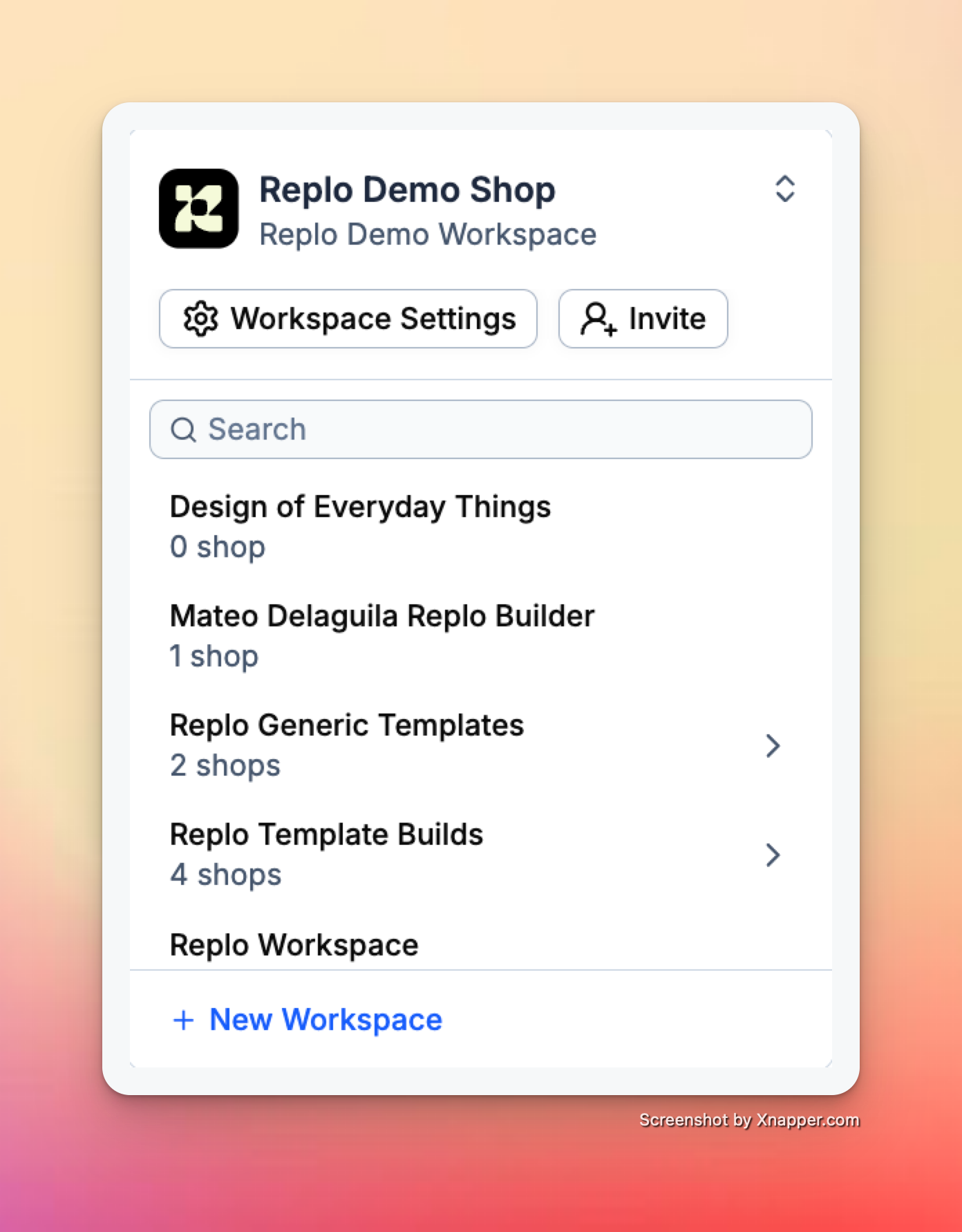
Users can view and navigate through all their workspaces and projects via the dropdown located in the upper-left panel of the dashboard. Projects are grouped by workspaces, which contain both billing and member permissions.
This dropdown is also where users can create a new workspace or project. Click into a workspace to select a project or create a new one.
 ## Workspace Settings
### General
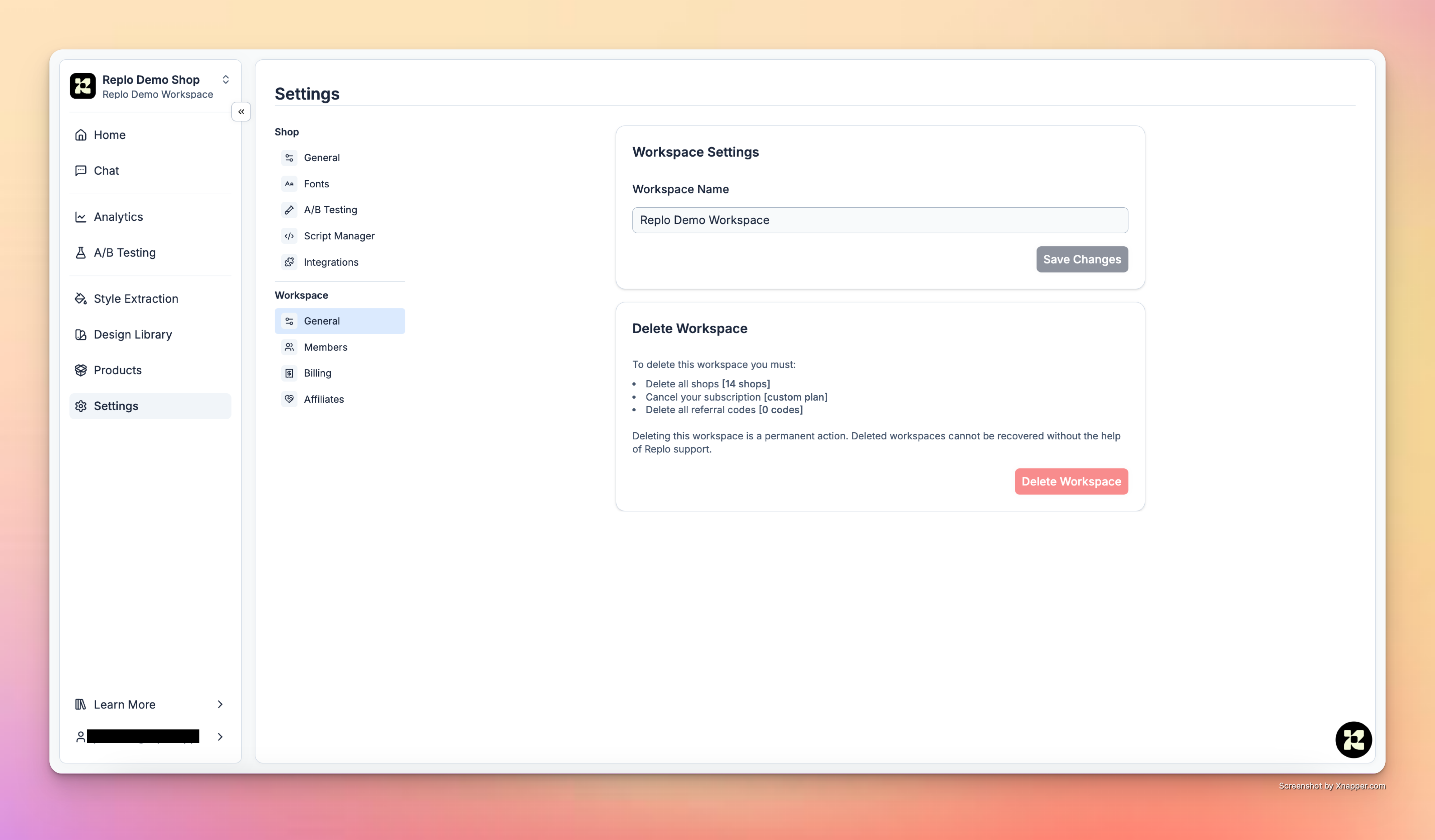
In the workspace general settings, you can update the workspace name and delete the workspace.
## Workspace Settings
### General
In the workspace general settings, you can update the workspace name and delete the workspace.
 ### Workspace Members
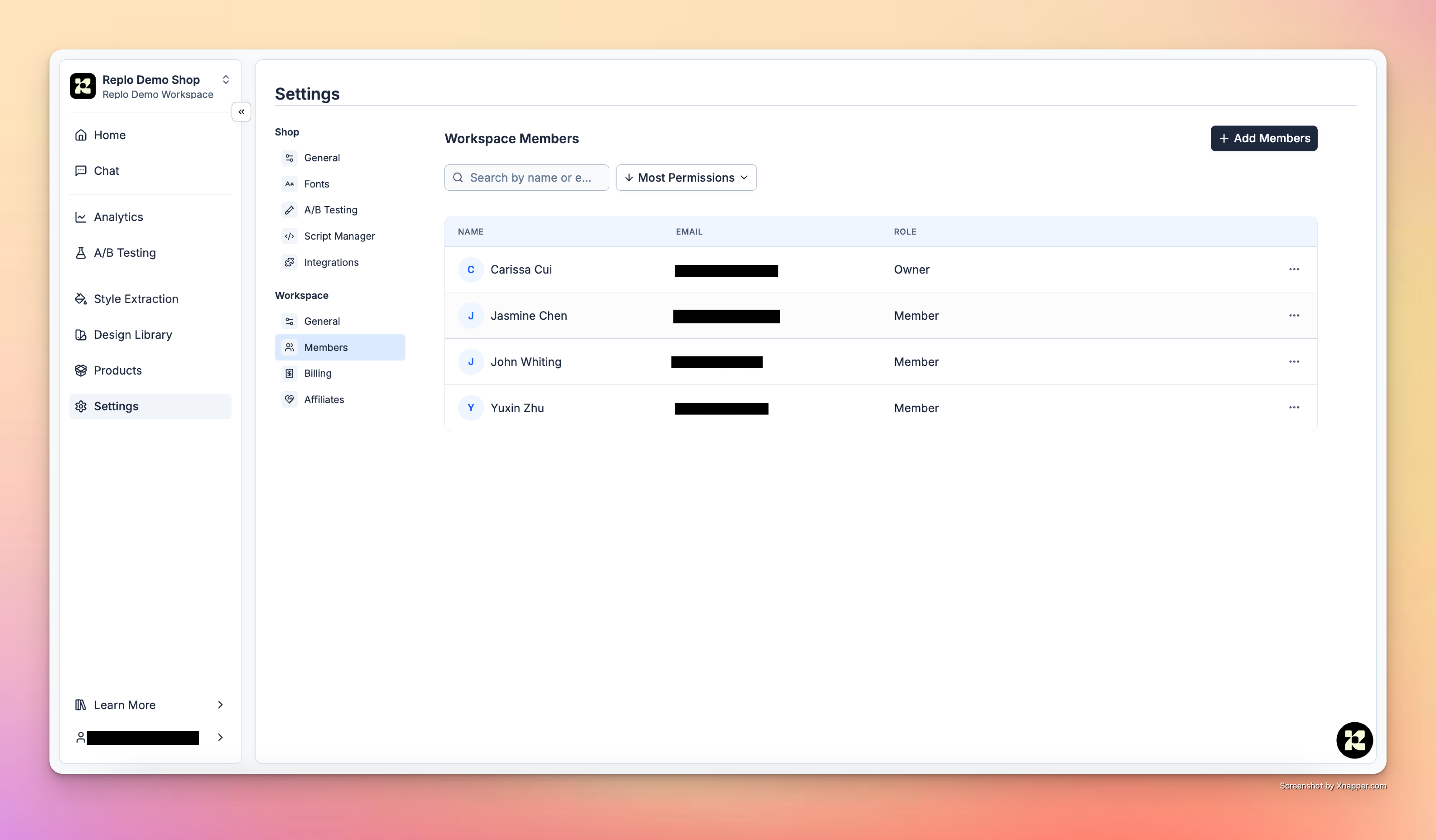
On the Workspace Members tab, users can perform the following actions:
* View all members that belong to a workspace or individual project.
* Add new members to the workspace or a specific project.
* Remove members from the workspace or a specific project.
There are two permission tiers available at the workspace level:
* **Owner**: Owners have access to all actions, including project or workspace deletion and billing management.
* **Member**: Members have access to view and edit all projects that belong to the workspace.
### Workspace Members
On the Workspace Members tab, users can perform the following actions:
* View all members that belong to a workspace or individual project.
* Add new members to the workspace or a specific project.
* Remove members from the workspace or a specific project.
There are two permission tiers available at the workspace level:
* **Owner**: Owners have access to all actions, including project or workspace deletion and billing management.
* **Member**: Members have access to view and edit all projects that belong to the workspace.
 **Workspace Billing**
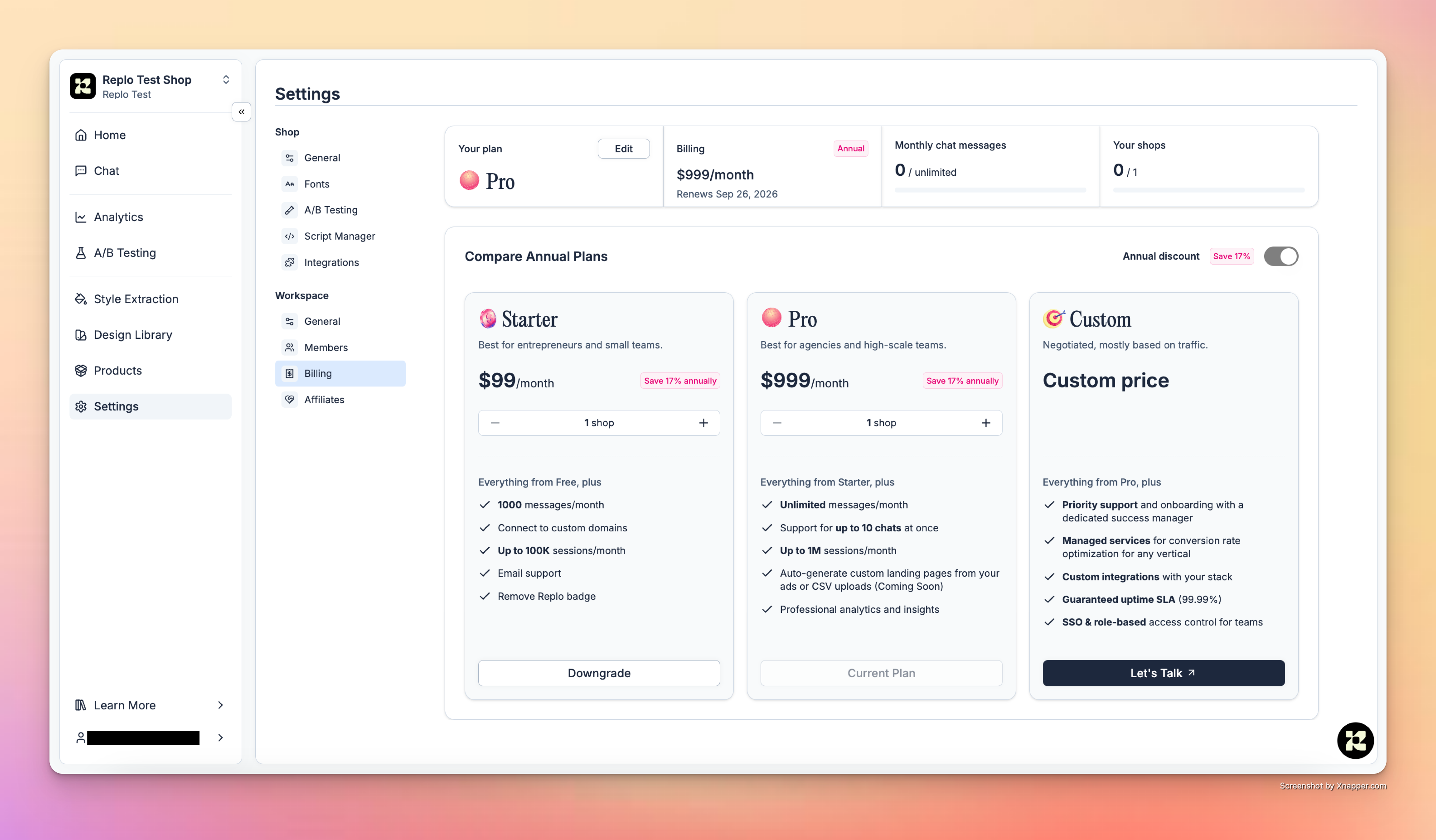
On the billing tab, workspace owners can manage the overall billing plan for that workspace. Here, workspace owners can:
* Upgrade, downgrade, or cancel their plans
* Add additional projects
* View billing summary and limits
* Edit payment details
**Workspace Billing**
On the billing tab, workspace owners can manage the overall billing plan for that workspace. Here, workspace owners can:
* Upgrade, downgrade, or cancel their plans
* Add additional projects
* View billing summary and limits
* Edit payment details
 ### Affiliates Program
Read more about the workspace-level affiliates program in our docs [here](https://support.replo.app/hc/en-us/articles/18529109393933).
# Projects in Replo
Projects are the core collaboration space within Replo. These are online storefronts, each with their own pages, products, brand library, A/B tests, and insights.
## Settings
In project settings, teams can configure important details about their projects, such as operational settings and preferences.
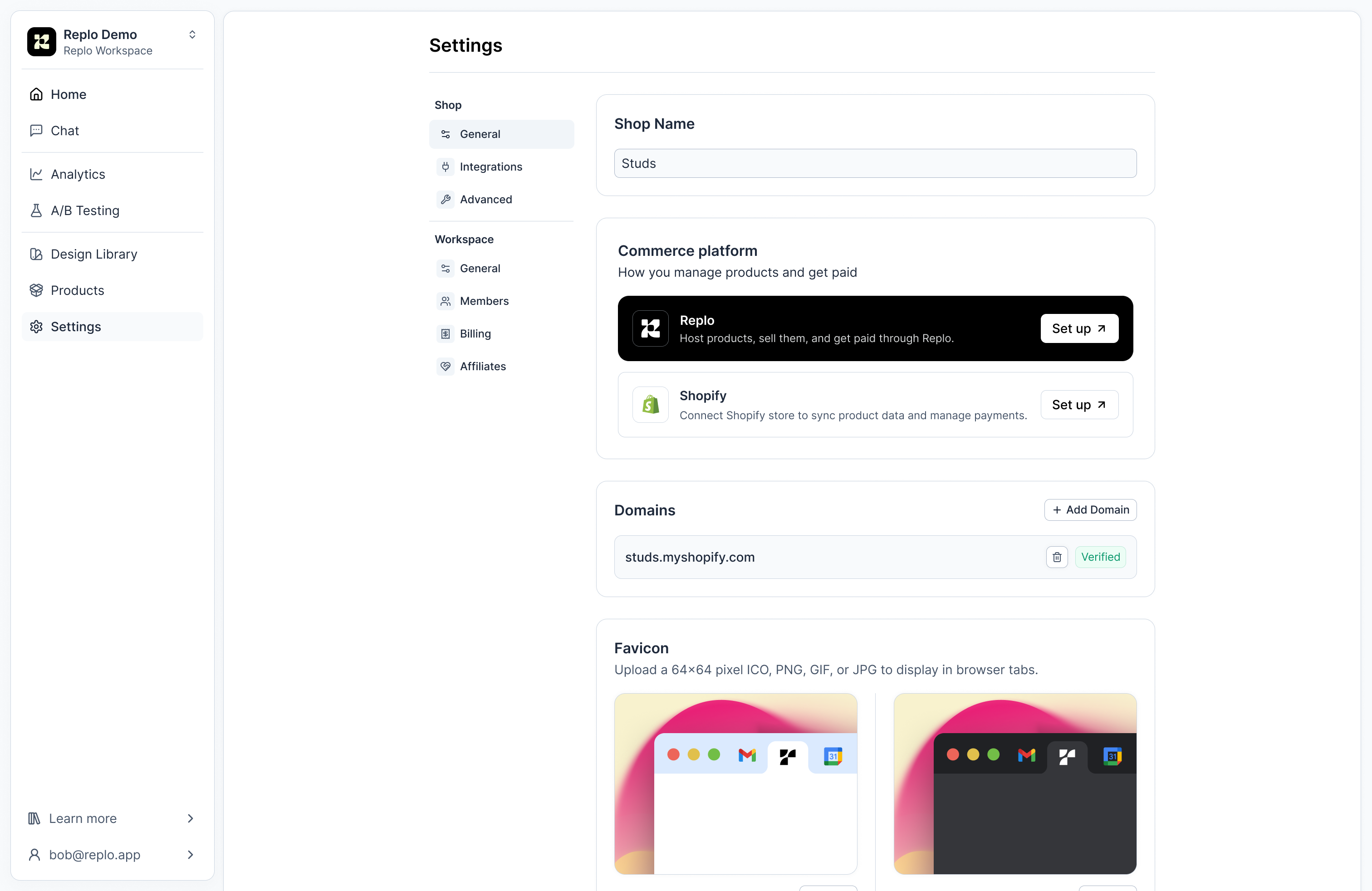
**General**
In the general settings for the project, you can customize the project’s name, set the preferred timezone, and define the currencies in which project data will be displayed.
Additionally, you can transfer projects between workspaces or delete them, if necessary.
### Affiliates Program
Read more about the workspace-level affiliates program in our docs [here](https://support.replo.app/hc/en-us/articles/18529109393933).
# Projects in Replo
Projects are the core collaboration space within Replo. These are online storefronts, each with their own pages, products, brand library, A/B tests, and insights.
## Settings
In project settings, teams can configure important details about their projects, such as operational settings and preferences.
**General**
In the general settings for the project, you can customize the project’s name, set the preferred timezone, and define the currencies in which project data will be displayed.
Additionally, you can transfer projects between workspaces or delete them, if necessary.
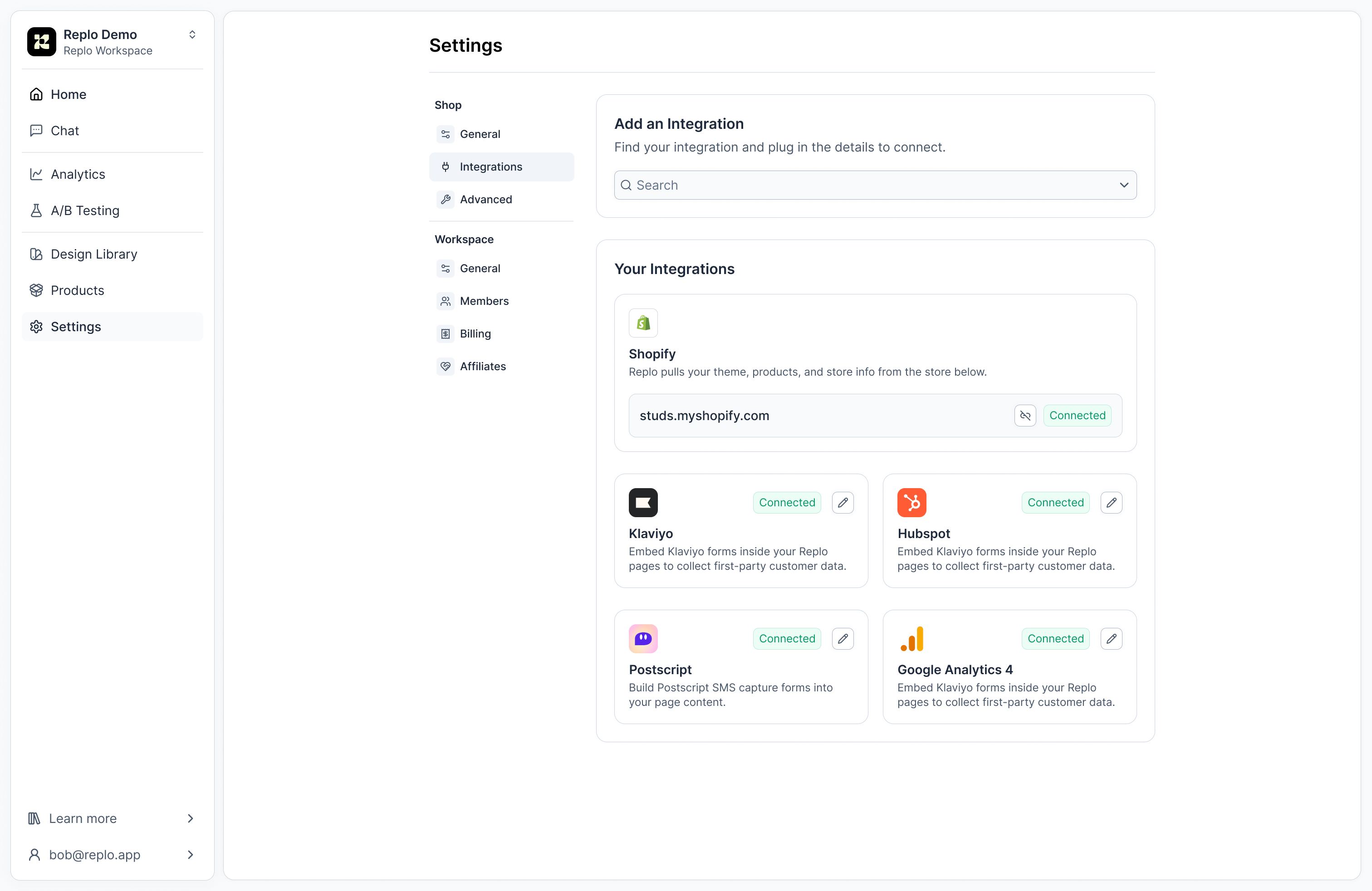
 **Integrations**
Manage, edit, and add new integrations in the Integrations tab.
**Integrations**
Manage, edit, and add new integrations in the Integrations tab.
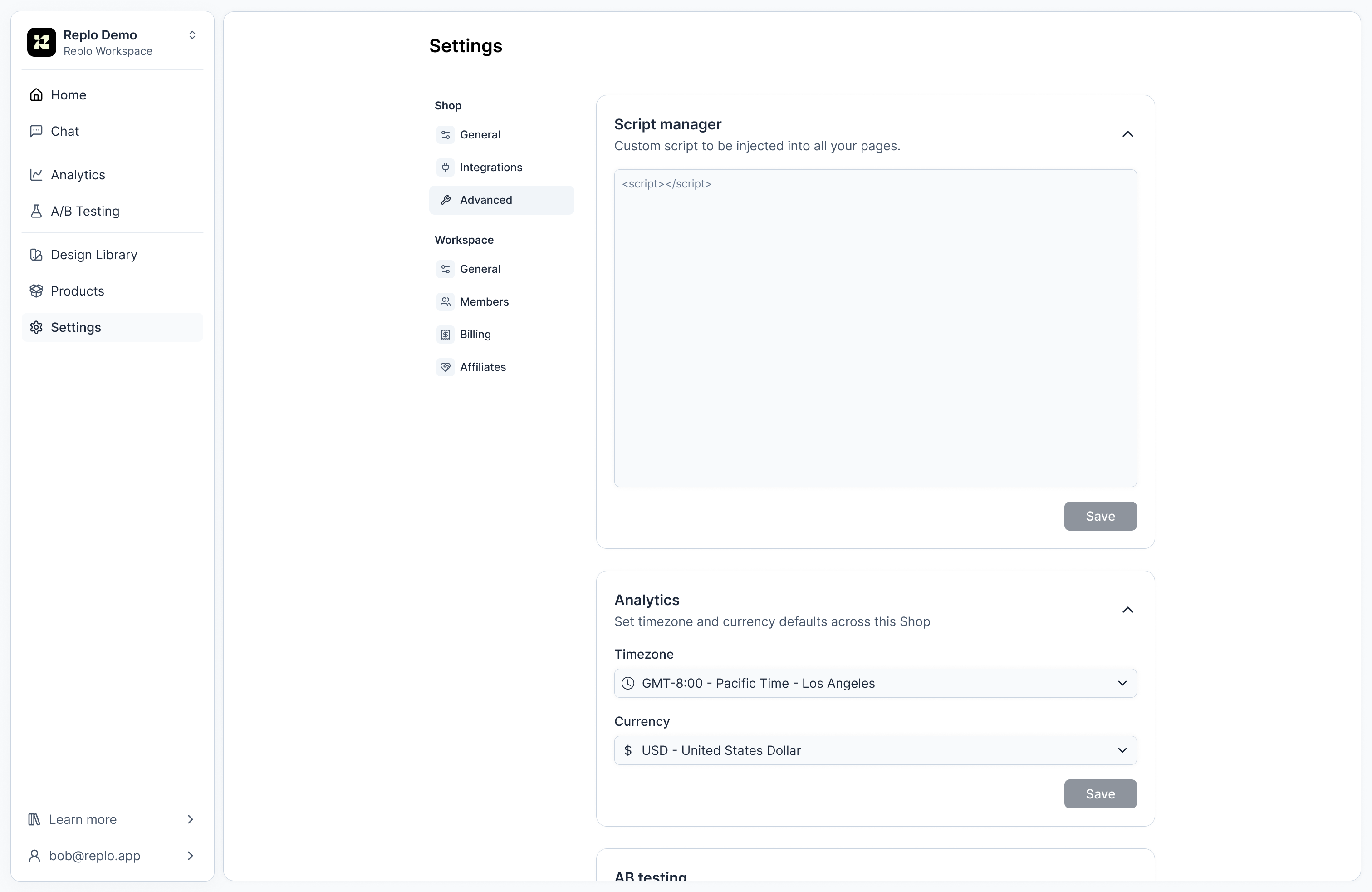
 **Advanced**
In Advanced settings, you can edit your custom script manager, analytics timezone and currency, and custom domains.
**Advanced**
In Advanced settings, you can edit your custom script manager, analytics timezone and currency, and custom domains.
 ### **Moving Replo Content across Projects**
Transferring content from one project to another is currently unsupported.
### Moving Replo Projects to a Different Workspace
**Requirements**
* **Role:** The ability to move projects is exclusively available to workspace owners. See [Permissions in Replo Workspaces](permissions) for more info on workspace roles.
### Step-by-Step Guide to Moving Projects
1. **Check Project Limits:** Before attempting to move a project, it's important to verify the project limits of the target workspace. Each workspace has a set number of projects associated with its plan, which could affect your ability to move a project seamlessly.
2. **Initiate Project Transfer:** Head to the project settings of the workspace you wish to move. Under project general, there is an option to move the project.
### **Moving Replo Content across Projects**
Transferring content from one project to another is currently unsupported.
### Moving Replo Projects to a Different Workspace
**Requirements**
* **Role:** The ability to move projects is exclusively available to workspace owners. See [Permissions in Replo Workspaces](permissions) for more info on workspace roles.
### Step-by-Step Guide to Moving Projects
1. **Check Project Limits:** Before attempting to move a project, it's important to verify the project limits of the target workspace. Each workspace has a set number of projects associated with its plan, which could affect your ability to move a project seamlessly.
2. **Initiate Project Transfer:** Head to the project settings of the workspace you wish to move. Under project general, there is an option to move the project.
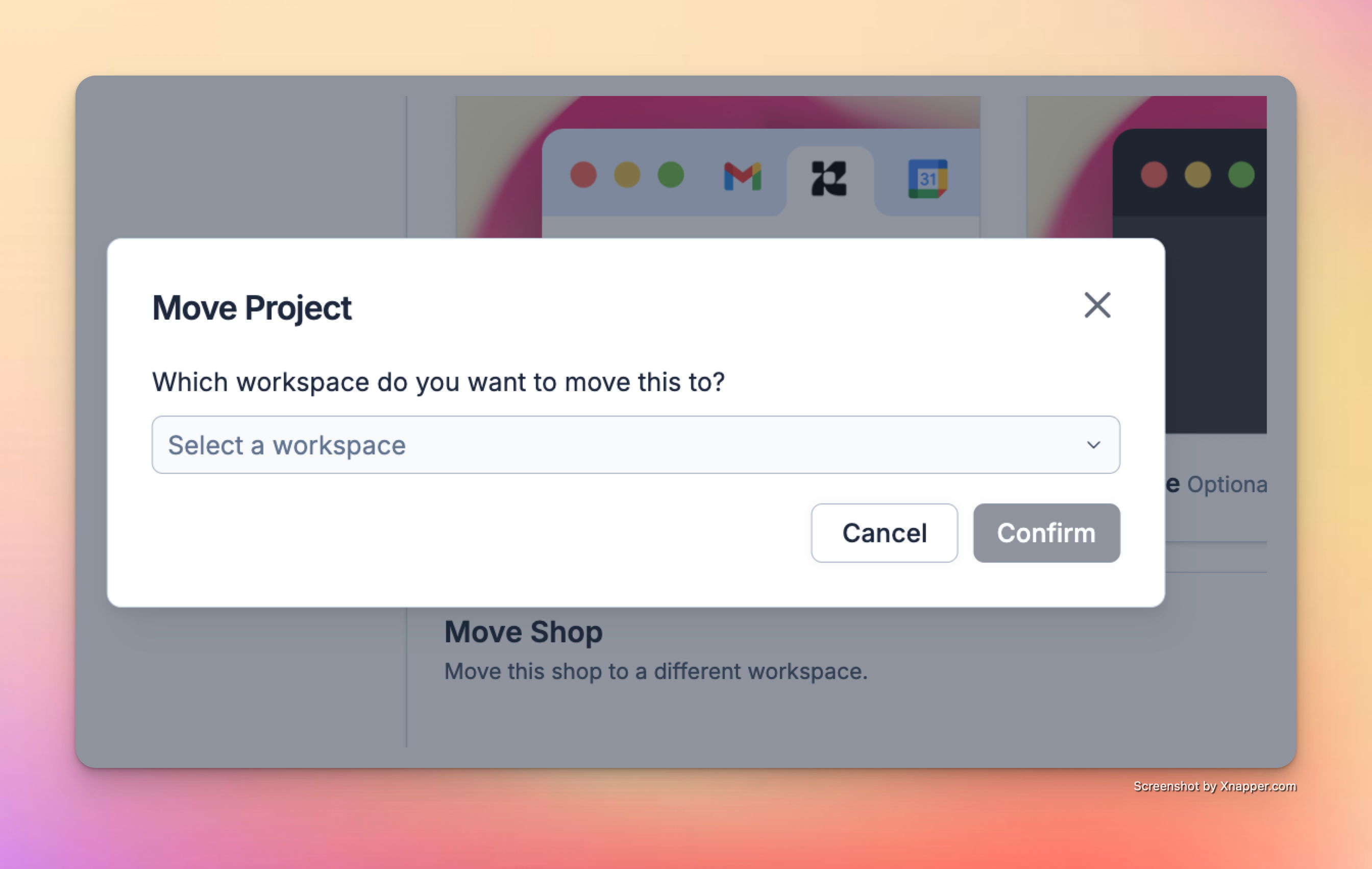 3. **Select the Target Workspace:** After initiating the move, you will be prompted to select the new workspace in which you want the project to reside. Make sure this workspace has the capacity to handle additional integrations. You can see integration limits based on plans in the [Pricing Tiers](https://support.replo.app/hc/en-us/articles/22389707341325) documentation.
4. **Confirm the Move:** Review all details and confirm the move. It’s a good practice to notify any team members who might be affected by this change to avoid any workflow disruptions.
3. **Select the Target Workspace:** After initiating the move, you will be prompted to select the new workspace in which you want the project to reside. Make sure this workspace has the capacity to handle additional integrations. You can see integration limits based on plans in the [Pricing Tiers](https://support.replo.app/hc/en-us/articles/22389707341325) documentation.
4. **Confirm the Move:** Review all details and confirm the move. It’s a good practice to notify any team members who might be affected by this change to avoid any workflow disruptions.