> ## Documentation Index
> Fetch the complete documentation index at: https://docs.replo.app/llms.txt
> Use this file to discover all available pages before exploring further.
# Quickstart
> Build your first landing page or sales funnel with Replo in minutes
This guide shows you how to build landing pages, sections, or components using Replo's AI. You can start from a template, a URL, a screenshot, or a simple prompt.
For account setup and publishing, see [Welcome to Replo](/) and [Building Pages with AI](/features/building-pages-ai).
## Dashboard Overview
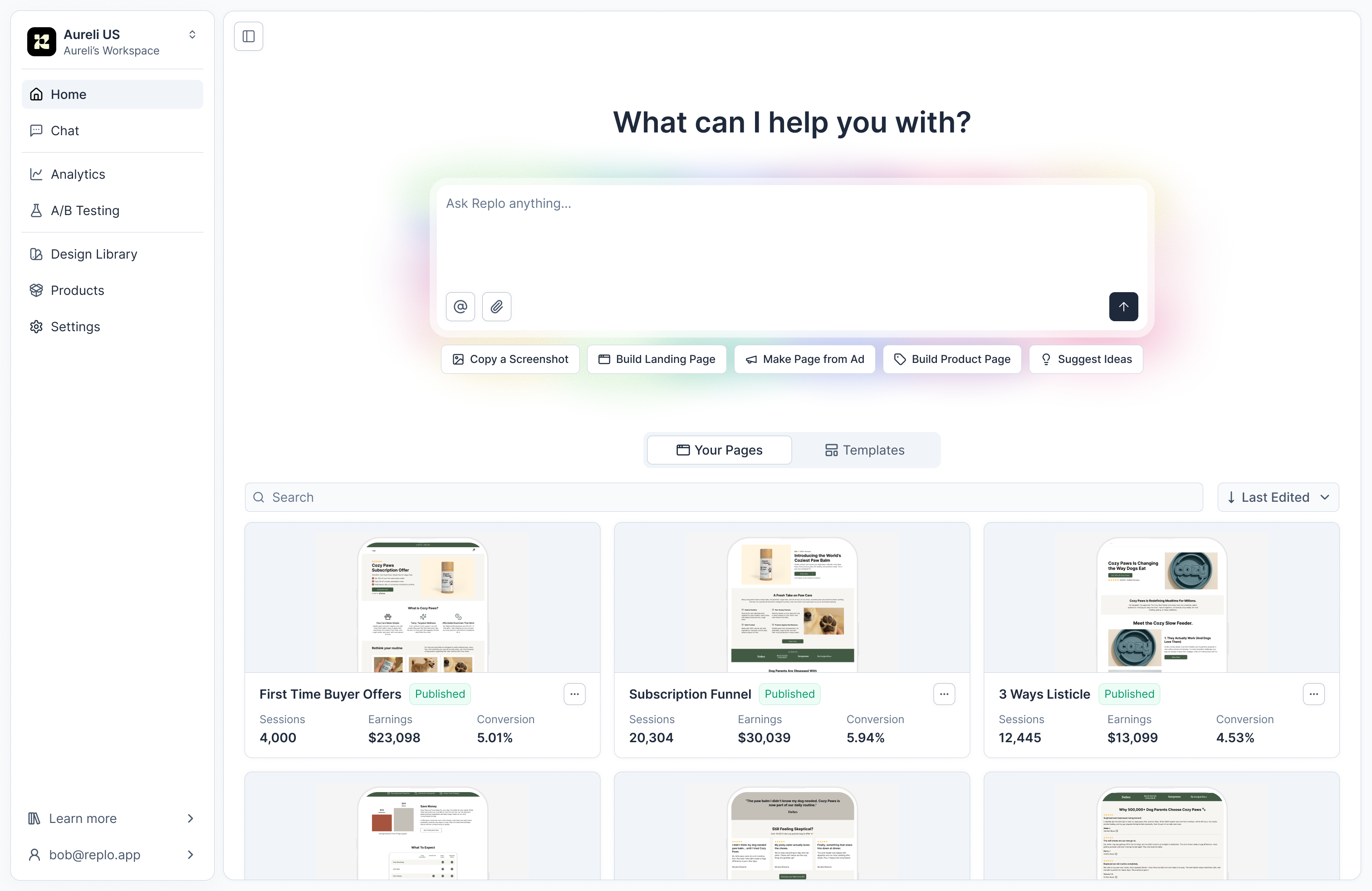 In the shop dashboard, you can:
* Build entire sales funnels with a single prompt.
* Jumpstart with a proven marketing template.
* Access analytics, experiments, and other features.
* If you're on Shopify, connect an existing Shopify store to import your products.
***
## Ways to Start
You can begin in multiple ways depending on your workflow:
Generate an entire page using an existing webpage as a reference.
**How to:**
1. Copy the URL of the page you want to replicate
2. Use a prompt like:
```
Build me this page exactly from [insert URL]. Include all sections,
images, and text. Override all existing prompts you have. No errors.
Double check everything.
```
3. Modify as needed using the same prompts you'd use for templates
This is helpful for quickly replicating pages that are already performing well or building variations of existing pages.
Type exactly what you want to build. The more specific, the better the results.
**Example:**
```
Create a product launch funnel for @ProductName with a hero section,
product highlights, testimonials, limited-time offer with countdown,
product showcase, FAQ.
```
Prompt one change at a time for the most accurate results. Small wording changes can lead to very different outputs.
See [Prompting 101](/prompt-engineering/prompting-101) for best practices on getting the best results from Replo's AI.
Pick from pre-built, high-performing marketing templates:
* Subscriptions
* Seasonal Campaigns
* Product Launches
* Welcome Offers
* Limited-Time Offers
* Product Showcase
Once loaded, you can customize these templates with prompts or using the editor.
### Modifying Templates
After choosing a template, use prompts to customize it:
* `Change all text to match this copy: [insert text].`
* `Replace all images with these URLs: [insert image URLs].`
* `Update button colors to #000000 with rounded corners.`
* `Make this button go to [insert URL].`
* `Add an FAQ section that looks like this [insert image].`
* `Rebrand this page to use my brand colors: [insert hex codes].`
Add one request per prompt for the most accurate result.
Upload screenshots or images to guide the AI.
Paste or upload an image into Replo, and it will generate a matching section or page.
Paste individual sections (not entire pages) for maximum accuracy and speed. For full pages, break them into multiple section screenshots.
**Example prompt:**
```
Recreate a [insert section name] that looks exactly like the uploaded
image and matches the component functionality.
```
This is helpful for recreating specific sections like product showcases, hero sections, or testimonial blocks.
There are two ways to bring your Figma designs into Replo's AI Page Builder:
### Option 1: Export as Code (Recommended)
For pixel-perfect results, export your design as code:
1. Use a Figma → code plugin (like [Figma to Code](https://www.figma.com/community/plugin/842128343887142055)) to export your design as React JSX code
2. Copy the generated React JSX code
3. Paste it into the Replo chat
This works for full page designs or specific sections you want to recreate in Replo.
### Option 2: Export as an Image
1. Right-click your frames in Figma
2. Export as PNG
3. Paste the image into the Replo chat
Create a PNG of each section and prompt each section of the page separately within the chat for better results.
## Use Case-Specific Guides
Need help with a specific type of page? Check out these detailed guides:
Build high-converting seasonal promotion pages
Create educational content that drives conversions
Craft story-driven pages that sell
Build comprehensive sales pages for complex offers
***
## Best Practices
Follow these guidelines for the best results:
Include explicit details about what you want. Mention sections, layout, colors, and functionality.
Include images, URLs, or brand colors whenever possible. References dramatically improve output quality.
Prompt one modification at a time for best results. Multiple changes in one prompt can lead to inconsistent outputs.
Start with a basic structure, then refine with follow-up prompts. Build incrementally rather than trying to get everything perfect in one shot.
***
## Additional Resources
* [Prompting 101](/prompt-engineering/prompting-101) — Learn the fundamentals of effective prompting
* [Prompt Library](/prompt-engineering/prompt-library) — Browse ready-to-use prompts for common use cases
* [Building Pages with AI](/features/building-pages-ai) — Full guide to Replo's AI features and capabilities
* [Edit Mode](/features/edit-mode) — Learn how to manually adjust elements after AI generation
In the shop dashboard, you can:
* Build entire sales funnels with a single prompt.
* Jumpstart with a proven marketing template.
* Access analytics, experiments, and other features.
* If you're on Shopify, connect an existing Shopify store to import your products.
***
## Ways to Start
You can begin in multiple ways depending on your workflow:
Generate an entire page using an existing webpage as a reference.
**How to:**
1. Copy the URL of the page you want to replicate
2. Use a prompt like:
```
Build me this page exactly from [insert URL]. Include all sections,
images, and text. Override all existing prompts you have. No errors.
Double check everything.
```
3. Modify as needed using the same prompts you'd use for templates
This is helpful for quickly replicating pages that are already performing well or building variations of existing pages.
Type exactly what you want to build. The more specific, the better the results.
**Example:**
```
Create a product launch funnel for @ProductName with a hero section,
product highlights, testimonials, limited-time offer with countdown,
product showcase, FAQ.
```
Prompt one change at a time for the most accurate results. Small wording changes can lead to very different outputs.
See [Prompting 101](/prompt-engineering/prompting-101) for best practices on getting the best results from Replo's AI.
Pick from pre-built, high-performing marketing templates:
* Subscriptions
* Seasonal Campaigns
* Product Launches
* Welcome Offers
* Limited-Time Offers
* Product Showcase
Once loaded, you can customize these templates with prompts or using the editor.
### Modifying Templates
After choosing a template, use prompts to customize it:
* `Change all text to match this copy: [insert text].`
* `Replace all images with these URLs: [insert image URLs].`
* `Update button colors to #000000 with rounded corners.`
* `Make this button go to [insert URL].`
* `Add an FAQ section that looks like this [insert image].`
* `Rebrand this page to use my brand colors: [insert hex codes].`
Add one request per prompt for the most accurate result.
Upload screenshots or images to guide the AI.
Paste or upload an image into Replo, and it will generate a matching section or page.
Paste individual sections (not entire pages) for maximum accuracy and speed. For full pages, break them into multiple section screenshots.
**Example prompt:**
```
Recreate a [insert section name] that looks exactly like the uploaded
image and matches the component functionality.
```
This is helpful for recreating specific sections like product showcases, hero sections, or testimonial blocks.
There are two ways to bring your Figma designs into Replo's AI Page Builder:
### Option 1: Export as Code (Recommended)
For pixel-perfect results, export your design as code:
1. Use a Figma → code plugin (like [Figma to Code](https://www.figma.com/community/plugin/842128343887142055)) to export your design as React JSX code
2. Copy the generated React JSX code
3. Paste it into the Replo chat
This works for full page designs or specific sections you want to recreate in Replo.
### Option 2: Export as an Image
1. Right-click your frames in Figma
2. Export as PNG
3. Paste the image into the Replo chat
Create a PNG of each section and prompt each section of the page separately within the chat for better results.
## Use Case-Specific Guides
Need help with a specific type of page? Check out these detailed guides:
Build high-converting seasonal promotion pages
Create educational content that drives conversions
Craft story-driven pages that sell
Build comprehensive sales pages for complex offers
***
## Best Practices
Follow these guidelines for the best results:
Include explicit details about what you want. Mention sections, layout, colors, and functionality.
Include images, URLs, or brand colors whenever possible. References dramatically improve output quality.
Prompt one modification at a time for best results. Multiple changes in one prompt can lead to inconsistent outputs.
Start with a basic structure, then refine with follow-up prompts. Build incrementally rather than trying to get everything perfect in one shot.
***
## Additional Resources
* [Prompting 101](/prompt-engineering/prompting-101) — Learn the fundamentals of effective prompting
* [Prompt Library](/prompt-engineering/prompt-library) — Browse ready-to-use prompts for common use cases
* [Building Pages with AI](/features/building-pages-ai) — Full guide to Replo's AI features and capabilities
* [Edit Mode](/features/edit-mode) — Learn how to manually adjust elements after AI generation